Seedance 2.0 AI Video Generator
Turn a text prompt into a cinematic AI video concept. Describe the subject, movement, camera direction, lighting, and mood in the working generator above, then refine your prompt to shape the result.
Create a Video
Create Cinematic AI Video Scenes From Text
The Seedance 2 video generator on AI Hug gives you a direct text-to-video starting point above this page. Use the guidance below to write a more purposeful scene rather than treating the tool as a generic prompt box.
Build Motion Into the Prompt
Specify how the subject moves, how the camera travels, and how the environment reacts so the generated sequence has a readable sense of action.
Generate a Scene
Direct the Cinematic Style
Guide atmosphere with lighting, lens language, framing, color, time of day, and visual genre instead of relying on a vague one-line idea.
Shape the Look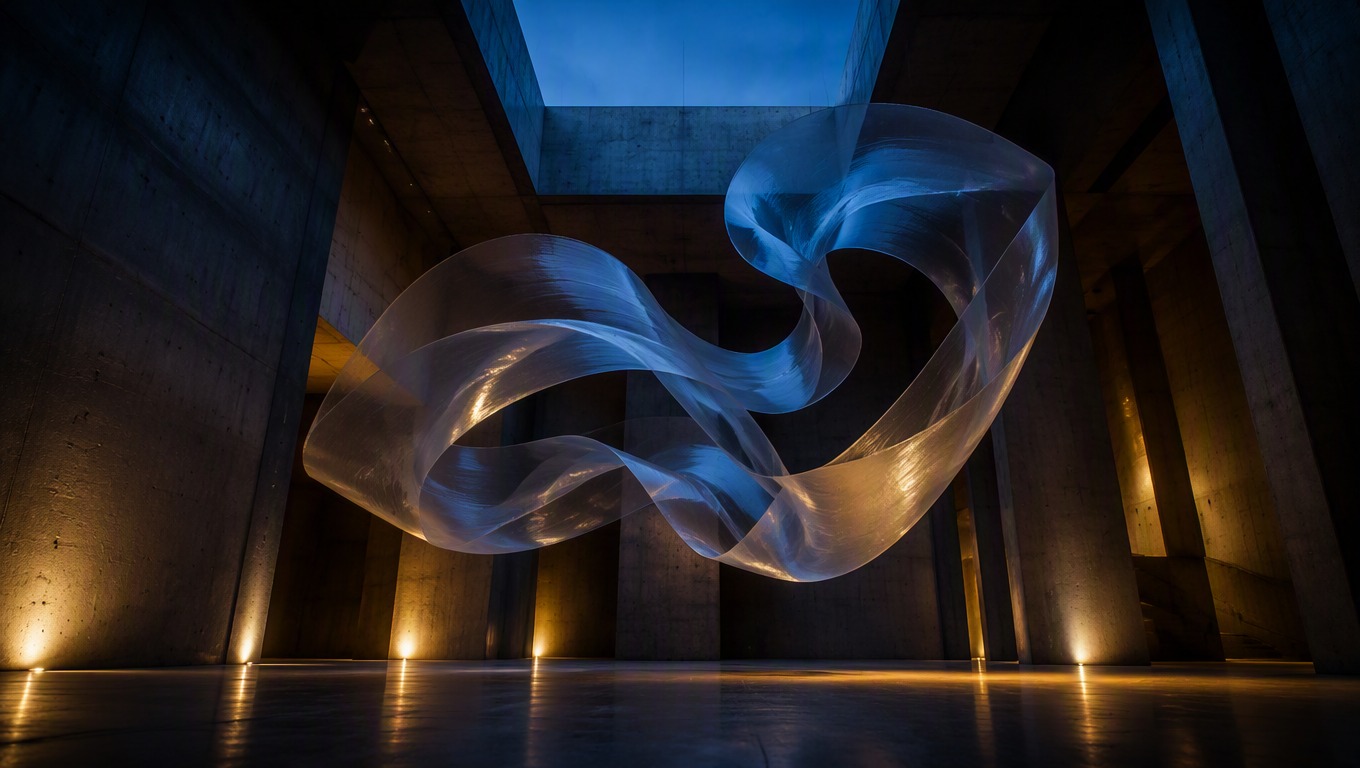
Create More Deliberate Variations
Adjust one creative variable at a time—motion, camera, pacing, or setting—to explore alternatives while keeping the central scene consistent.
Refine Your Prompt
Move from a written idea to concrete visual directions for storytelling, campaigns, animation, and pre-production.
Ways to Use a Seedance Video Generator
- 01
Short Film Concepts
Explore establishing shots, dramatic encounters, and atmospheric transitions before committing to a larger production.
- 02
Product Story Moments
Describe an object in motion, its environment, and the desired camera behavior for product-led visual concepts.
- 03
Music Visuals
Develop mood-driven scenes with rhythmic movement, expressive lighting, and distinctive locations.
- 04
Animation Ideation
Turn a written beat into a visual direction for Seedance 2.0 animation generation and story development.
- 05
Social Video Concepts
Prototype concise attention-grabbing scenes suited to vertical or feed-based creative planning without embedding an interface in the visual.
- 06
Storyboard Exploration
Test camera angles, scene geography, and action cues as inspiration for a broader shot list.
How to Create a Seedance 2.0 AI Video
A focused prompt helps the model interpret the scene, movement, camera, and mood as one coherent sequence.
 01
01Describe the Core Scene
Name the main subject, setting, time of day, and the event that should unfold. Keep the central action easy to understand.
 02
02Add Motion and Camera Direction
Explain how the subject moves and how the camera follows, pans, pushes in, tracks, or remains still.
 03
03Set the Visual Tone
Add lighting, atmosphere, color, lens character, and pacing cues that support the story rather than stacking unrelated styles.
 04
04Generate and Refine
Run the prompt in the embedded tool, review the result, then revise the most important motion or composition detail for the next variation.
Seedance 2.0 FAQ
Practical answers for writing prompts and using the embedded text-to-video tool.
What is the Seedance 2.0 AI video generator on this page?
It is a text-to-video experience embedded on AI Hug. Enter a scene description in the working generator above, then use the page guidance to improve motion, camera, and atmosphere cues.
What should I include in a Seedance 2 prompt?
Start with one subject and one clear action. Add the setting, camera movement, lighting, mood, and any essential timing cue in direct language.
How do I make the generated motion easier to understand?
Use specific verbs and connect movement to the camera and environment. For example, explain what advances, what reacts, and whether the camera tracks, pans, or holds.
Can I use Seedance 2.0 animation generation for storyboards?
It can help explore the visual direction of a shot or sequence. Treat outputs as creative references and refine important continuity, framing, and production details separately.
Why should I revise only one prompt variable at a time?
Changing motion, camera, setting, and style all at once makes it harder to identify what improved the result. Focused revisions make variations easier to compare.
Does AI Hug guarantee a particular video result?
No. Generative results can vary with prompt wording and model behavior, so review each output and iterate when precise composition or motion matters.
Is AI Hug an official Seedance or ByteDance product page?
No. AI Hug is an independent platform and is not ByteDance or an official Seedance product page. Seedance-related names are used to describe the model-focused generation experience.